3.2. Creating a new language specification
Follow this quick start guide to create a new Spoofax language specification project to define your own language.
Choose Create New Project from the welcome dialog, or the File → New → Project… menu item, to open the New Project dialog.
Select the Spoofax Language project type.
Select the Metaborg SDK as the project’s SDK.
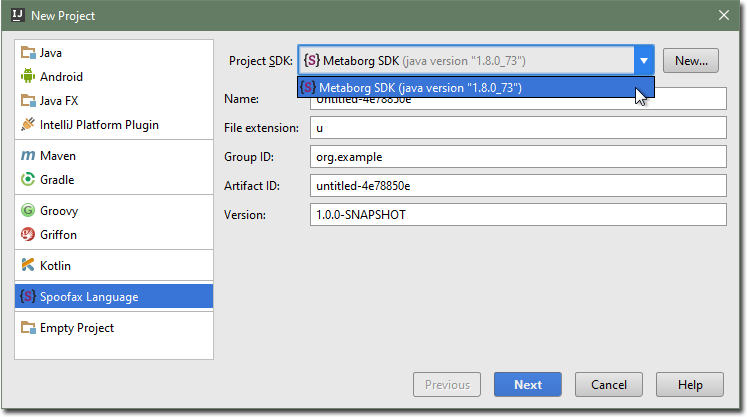 Select the "Metaborg SDK"
Note
If the Project SDK displays <None> and you can’t select the Metaborg SDK, then you need to add it first.
Click the New… button next to the Project SDK field.

You may get a warning if you have no Java JDK configured. Click OK and configure the JDK’s home location. The suggested home directory is usually correct. Click OK.
Select a home directory for the Metaborg SDK. The default is the Spoofax plugin’s
lib/folder, which is sufficient as it contains all the core dependencies.Click OK.
Change the fields to suit your needs.
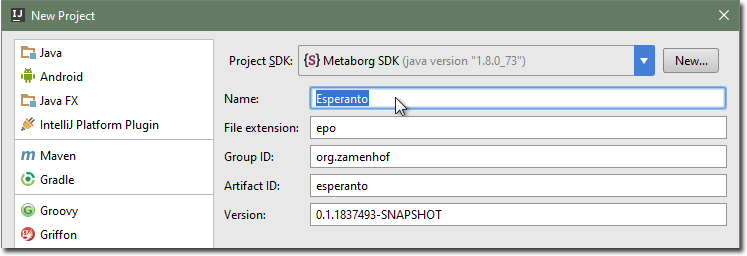 Change the fields
Click Next.
Pick a project name and location, and click Finish.
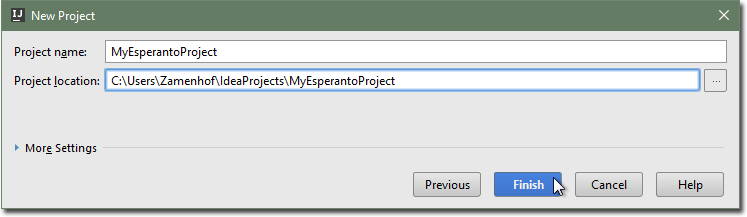 Pick a project name
The created Spoofax language specification project will have a metaborg.yaml
file, which specifies the configuration and language dependencies of the
specification.